
Before You Start (From cPanel)
- Log in to cPanel.
- Go to Email Accounts.
- Click Connect Devices next to the email account.
if cPanel Admin
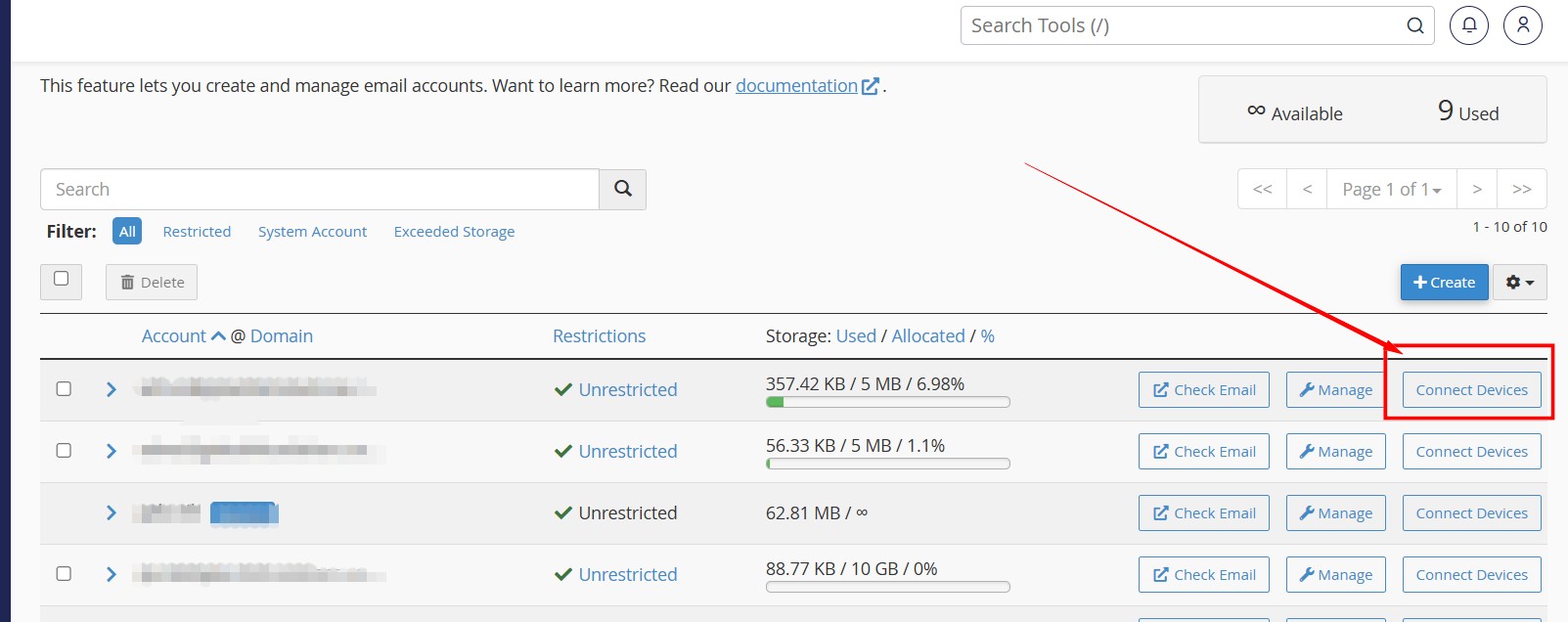
or as below as a regular account holder user.
Login to your webmail and follow below steps
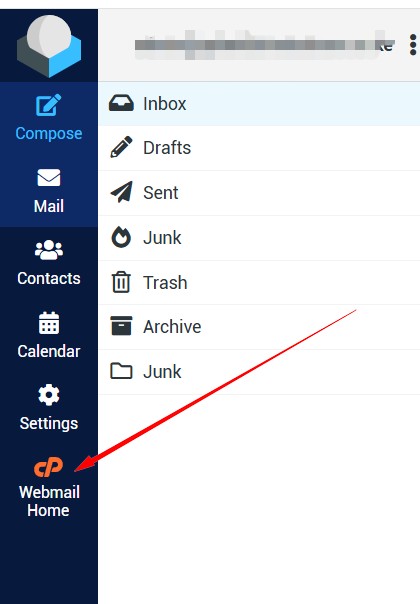
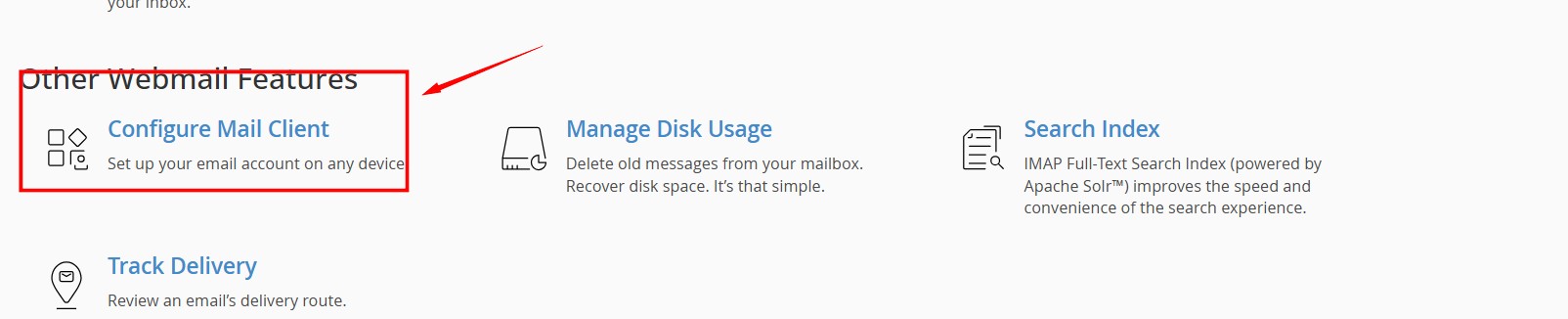
4. Note the manual settings.
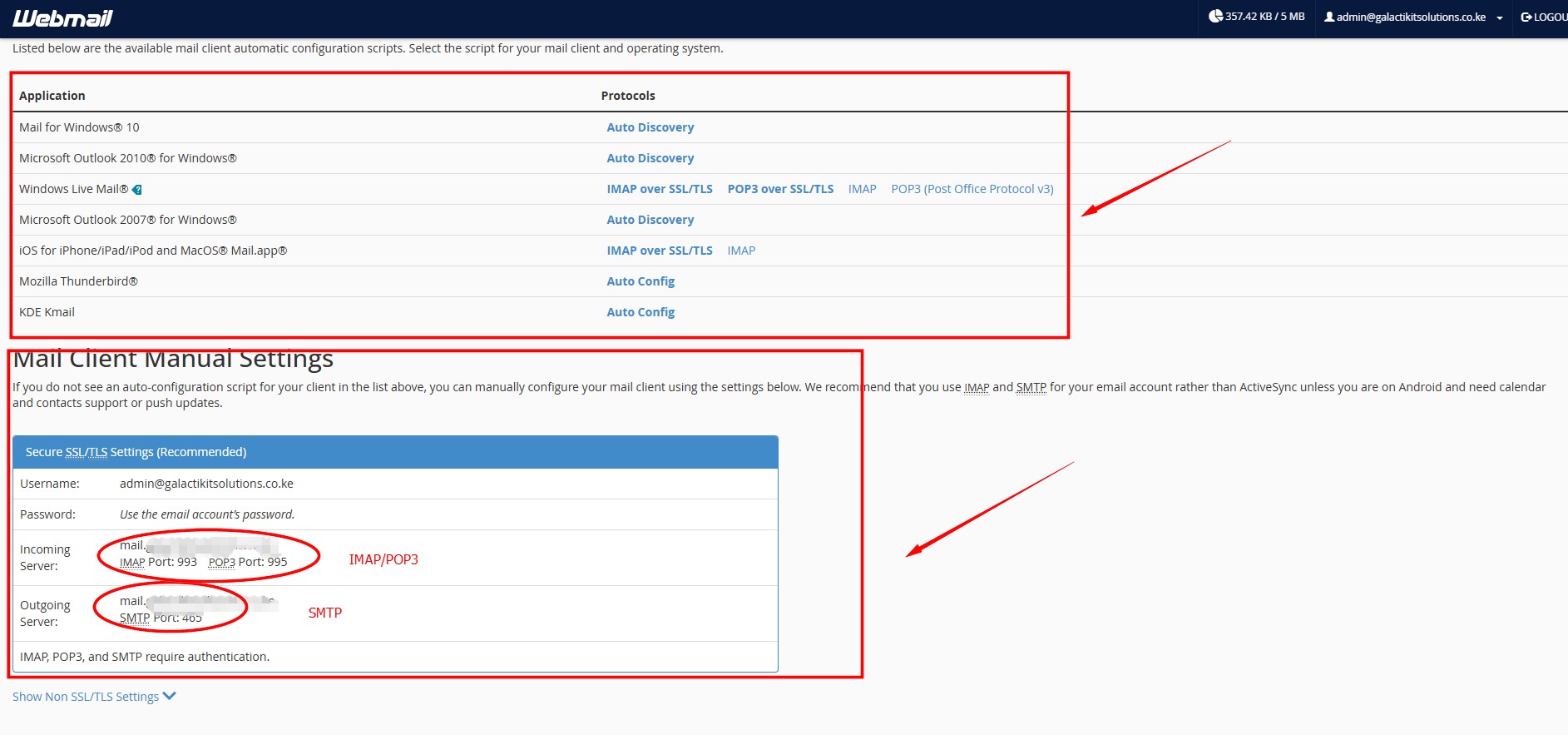
Typical cPanel settings:
Username: full email address
Password: email password
Incoming (IMAP – recommended)
-
Server: mail.yourdomain.com
-
Port: 993
-
Encryption: SSL/TLS
Incoming (POP3 – optional)
-
Server: mail.yourdomain.com
-
Port: 995
-
Encryption: SSL/TLS
Outgoing (SMTP)
-
Server: mail.yourdomain.com
-
Port: 465 (SSL) or 587 (TLS)
-
Authentication: Required
IMAP is recommended because it syncs across devices.
1. Setup on Windows (Outlook Desktop)
Automatic Method
-
Open Outlook.
-
Go to File → Add Account.
-
Enter your email address.
-
Click Connect.
-
Enter password.
If it fails, use manual setup.
Manual IMAP Setup (Recommended)
-
Go to File → Add Account.
-
Click Advanced options.
-
Tick Let me set up my account manually.
-
Choose IMAP.
Enter:
Incoming Mail
-
Server: mail.yourdomain.com
-
Port: 993
-
Encryption: SSL/TLS
Outgoing Mail
-
Server: mail.yourdomain.com
-
Port: 465 (SSL) or 587 (TLS)
-
Encryption: SSL/TLS
Login:
-
Username: full email address
-
Password: email password
Finish setup.
2. Setup on Mac (Outlook for Mac)
-
Open Outlook.
-
Click Outlook → Settings → Accounts.
-
Click Add Email Account.
-
Enter email address.
-
Choose IMAP if prompted.
Then enter:
Incoming server
-
mail.yourdomain.com
-
Port 993
-
SSL enabled
Outgoing server
-
mail.yourdomain.com
-
Port 465 or 587
-
SSL enabled
-
Requires authentication (use same credentials)
Save.
3. Setup on Android (Outlook App)
Install Microsoft Outlook from Google Play if not installed.
Steps:
-
Open Outlook app.
-
Tap Add Account.
-
Enter email address.
-
Tap Continue.
-
Choose IMAP.
-
Enter password.
-
Tap Advanced Settings if needed.
Enter:
IMAP
-
Server: mail.yourdomain.com
-
Port: 993
-
Security: SSL/TLS
SMTP
-
Server: mail.yourdomain.com
-
Port: 465 or 587
-
Security: SSL/TLS
-
Require sign-in: enabled
Tap Done.
4. Setup on iPhone (Outlook App)
Install Microsoft Outlook from the App Store.
Steps:
-
Open Outlook.
-
Tap Add Account.
-
Enter email address.
-
Tap Add Account.
-
If auto-detect fails, choose IMAP.
Enter:
IMAP
-
Hostname: mail.yourdomain.com
-
Port: 993
-
Use SSL: On
SMTP
-
Hostname: mail.yourdomain.com
-
Port: 465 or 587
-
Use SSL: On
-
Authentication: Yes
Sign in.
5. Alternative Method: Using Server Hostname Instead of Domain
If you get SSL certificate warnings:
Instead of:
mail.yourdomain.com
Use:
-
The exact server hostname shown in cPanel (e.g. server123.hostcompany.com)
This avoids SSL mismatch errors.
6. POP3 Setup (If Needed)
Use this only if you want emails downloaded to one device.
Change:
Incoming server type → POP3
Port → 995
SSL → Enabled
SMTP remains the same.
7. Using Secure Ports Summary
Always use encrypted ports:
-
IMAP → 993
-
POP3 → 995
-
SMTP → 465 or 587
Avoid ports 110 or 143 unless your host specifically requires them.
8. Common Problems and Fixes
Cannot Send Email
-
Ensure SMTP authentication is enabled.
-
Use same username and password as incoming server.
-
Try port 587 if 465 fails.
Cannot Connect to Server
-
Confirm server name is correct.
-
Check internet connection.
-
Confirm email password works in webmail.
SSL Certificate Warning
-
Use server hostname from cPanel.
-
Or ask host to install valid SSL.
9. Best Practice for Business Email
-
Use IMAP on all devices.
-
Use SSL/TLS only.
-
Keep passwords strong.
-
Do not use POP3 across multiple devices.
-
Regularly back up emails if business-critical.


